Loading...
Converting invoices from PDF to CSV should be straightforward, but sometimes things go wrong. Whether it's a poorly scanned document, unusual formatting, or missing data, conversion errors can be frustrating. This guide walks you through the most common issues and exactly how to fix them.
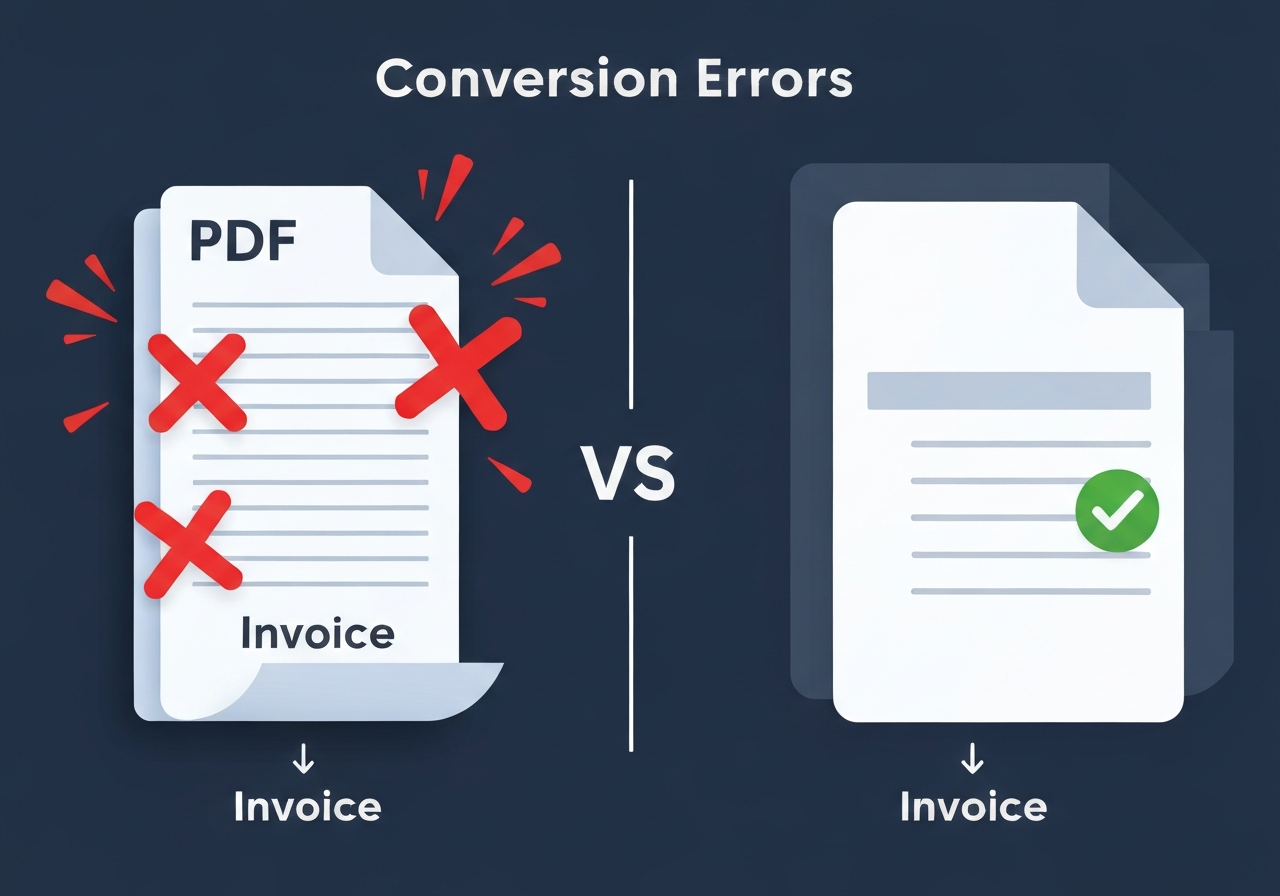
Understanding conversion errors
Most invoice conversion errors fall into a few categories:
- OCR issues – The text recognition can't read certain characters or numbers
- Layout problems – Complex tables or unusual formats confuse the extraction logic
- Data quality – Poor scans, low resolution, or image artifacts make text unreadable
- Missing information – Key fields like totals or dates aren't detected
- Format inconsistencies – Different date formats, currency symbols, or number separators
The good news? Most of these are fixable. Let's go through them one by one.
Error 1: "Unable to extract text from PDF"
This usually happens when your PDF is an image-only scan without selectable text. OCR (Optical Character Recognition) needs to work harder on these files.
How to fix it:
- Check your PDF quality – Open the file and try to select text with your mouse. If you can't select anything, it's an image-only PDF.
- Improve scan quality – If you scanned the invoice yourself, try re-scanning at higher DPI (at least 300 DPI for best results).
- Ensure good lighting – Dark or shadowy scans are harder to read. Make sure the original document is well-lit and flat when scanning.
- Use the original digital PDF – If possible, download the invoice directly from the sender's system rather than printing and scanning it.
For more details on handling scanned documents, see our help guide on supported formats.
Error 2: Missing or incorrect amounts
Sometimes the invoice converts, but the amounts are wrong or missing entirely. This usually happens when:
- The PDF uses unusual number formatting (e.g.,
1.234,56instead of1,234.56) - Currency symbols overlap with numbers
- Tables have merged cells or complex layouts
- The subtotal, tax, and total aren't clearly labelled
How to fix it:
- Check the original PDF structure – Open your PDF and look at how the amounts are displayed. Are they in a table? Are they clearly separated?
- Look for calculation errors – Sometimes the issue isn't conversion but a mistake in the original invoice. Double-check the math.
- Review currency formats – Our system handles most international formats, but extremely unusual formatting can cause issues. See our guide on format handling.
- Manual correction – If a specific field is consistently wrong, you can edit the CSV after conversion. It's still faster than typing everything manually.
Error 3: Dates not recognised
Date recognition problems occur when invoices use non-standard date formats or when dates appear in unusual places on the document.
Common date issues:
- Ambiguous formats – Is "01/02/2026" January 2nd or February 1st? ISO 8601 format (YYYY-MM-DD) eliminates this ambiguity.
- Multiple dates – Invoices often have issue dates, due dates, and delivery dates. The converter needs to identify which is which.
- Written-out dates – "January 15th, 2026" vs "15/01/2026" vs "2026-01-15" are all valid but different formats.
How to fix it:
- Check for date labels – Make sure your invoice clearly labels dates as "Invoice Date", "Due Date", etc.
- Use standard formats – If you're generating invoices, stick to common formats like DD/MM/YYYY or ISO format.
- Verify in the CSV – After conversion, quickly scan the date column. BillToSheet outputs dates in ISO format (YYYY-MM-DD) for maximum compatibility.
For more on date handling, check our date format handling guide.
Error 4: Line items missing or incomplete
This is one of the trickier issues – when the invoice header converts fine, but the line item table is incomplete or scrambled.
Why this happens:
- Complex table layouts – Merged cells, nested tables, or split columns can confuse table detection.
- Multi-page invoices – Tables that span multiple pages sometimes break across page boundaries.
- Inconsistent formatting – Different fonts, sizes, or alignments within the same table.
- Images or graphics – Company logos or watermarks overlapping the table data.
How to fix it:
- Review the line_items.csv – We generate a separate file for line items. Check if the data is there but in a different structure than expected.
- Simplify the source – If you control the invoice format, use simple tables without merged cells or complex formatting.
- Check page breaks – For multi-page invoices, ensure tables don't break mid-row.
- Manual cleanup – If a few rows are missing or merged, it's often faster to fix them in Excel than try to re-convert.
Error 5: Special characters appear as symbols
You might see weird symbols (€, £, â€") instead of proper currency symbols or punctuation.
What's happening:
This is a character encoding issue. The PDF uses one character set (usually UTF-8), but somewhere in the conversion or when you open the CSV, it's being interpreted as a different encoding.
How to fix it:
- Open CSV in UTF-8 mode – Most modern software defaults to UTF-8, but older versions of Excel might not. When opening the CSV, explicitly select "UTF-8" as the encoding.
- Use Google Sheets – It handles UTF-8 automatically and won't have encoding issues.
- Import into Excel properly – Instead of double-clicking the CSV, use Excel's "Data" → "From Text/CSV" import wizard and select UTF-8 encoding.
For more details, see Microsoft's guide to importing CSV files with proper encoding.
Error 6: Duplicate data or repeated fields
Sometimes the same information appears multiple times in the CSV – invoice numbers repeated, or line items duplicated.
Why this happens:
- Headers and footers – Invoice numbers or company names in page headers get extracted multiple times.
- Summary sections – If the invoice has both a line item total and a summary section, both might be extracted.
- Multi-page tables – Table headers repeated on each page can appear as duplicate data.
How to fix it:
- Remove duplicates in Excel – Use "Data" → "Remove Duplicates" to clean up the CSV quickly.
- Check for summary sections – Look at the original PDF. If there's a summary box at the bottom, that's probably where the duplicate came from.
- Filter by unique invoice numbers – When importing to accounting software, use the invoice number as the unique identifier to prevent double-entry.
Error 7: Password-protected or encrypted PDFs
Some invoices are password-protected for security, which prevents automated conversion.
How to fix it:
- Remove the password first – Use Adobe Acrobat or a free tool to unlock the PDF before conversion.
- Request unprotected versions – If you regularly receive protected invoices from a vendor, ask them to send unprotected versions.
- Check our compatibility – Some password protections are easier to work with than others. See our password-protected PDF guide.
Best practices to avoid errors
Prevention is better than cure. Here's how to minimize conversion errors from the start:
- Use digital PDFs when possible – Download directly from the source rather than printing and scanning.
- Standardise your invoice format – If you're sending invoices, use consistent layouts and simple tables.
- Check file size limits – Very large files (over 10MB) can cause issues. See our file size guide.
- Test with one invoice first – Before bulk converting, try one invoice to ensure the format works well.
- Keep originals – Always save the original PDF. If conversion doesn't work perfectly, you have the source to reference.
Still having issues?
Most conversion errors can be fixed with the steps above, but if you're still stuck:
- Check our help center – We have detailed guides for specific issues in our help center.
- Try the conversion again – Sometimes temporary glitches happen. A second attempt often works.
- Contact support – Send us the problematic invoice (remove sensitive info if needed) and we can take a look. We're constantly improving the system based on real-world examples.
Want to see if your invoices convert cleanly? Try our PDF to CSV converter – your first conversion is free, and you'll see exactly how your documents are handled.
For bulk conversions, our bulk processing feature can handle hundreds of invoices at once, making it easy to identify any problematic formats in your document collection.